Showing posts with label photoshop. Show all posts

Tuesday, April 14, 2009

Correcting colour casts

I recently read an email post by Tim Grey on how to correct strong colour casts and thought I would demonstrate it here.

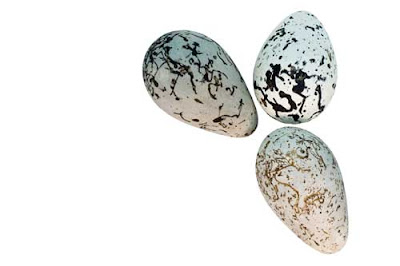
In this image one can notice a pink and green cast across two of the eggs, especially if you look at the lower righht egg. 
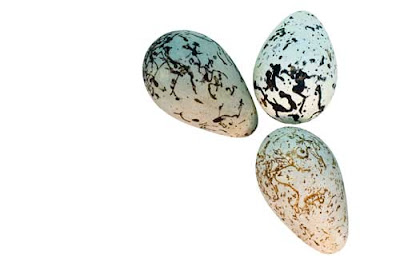


To remove this cast one does the following

1. Duplicate the Background and rename this layer Colour Correction
2. Ago to Filter>Blur>Average. This averages the colour values of the image and this is the colour of the cast.
3. To apply the opposite colour value to this since to remove the cast, go to Adjustments>Image>Invert.
4. Then above the Colour Correction layer apply the Blend mode 'Colour'.
5. Use the Opacity slider to adjust the strength of the blend until you have the original colour minus the cast, as shown in the image below.

Tuesday, October 28, 2008

More on CS4

I found this good review online. Click here for details.

I think this is on my Christmas list...

Ivan

Tuesday, August 05, 2008

Non-destructive dodging and burning technique

Some useful notes from one of the guys at the Camera Club spin-out "Aperture" group (for those working on special projects, competition entries or distinctions).

Dodging and Burning Non-destructively

First create a new transparent layer, and then set its blending mode to "Soft Light". This is an incredibly useful mode, with the following properties: anything lighter than mid-grey will selectively lighten the area below it (equivalent to "Screen" blending mode); anything darker than mid-grey with selectively darken the area below it (equivalent to "Multiply"). As with all blending modes, Photoshop treats "transparency" in exactly the same way as the neutral colour (in this case, mid-grey).

So, painting white onto the new layer will act as a dodge; painting black onto it will act as a burn - and it's all reversible, simply by painting a different colour or using the eraser! The best way to use it, I've found, is to choose pure black or pure white as the colour, pick a soft-ish brush, and then select a relatively low painting opacity (say 10%-15%). This allows you to build up the effect gradually, simply by repainting over the same area again and again. If the overall effect isn't strong enough, simply create another layer and do the same thing again.

Ivan